Messaging
The messaging system is a way for you to send messages to other players through a set channel in your roleplay server. If the staff members in your server have set it up, here's how you can use it!
Note
All user/player-facing messaging commands are stored in /message.
Sending a Message
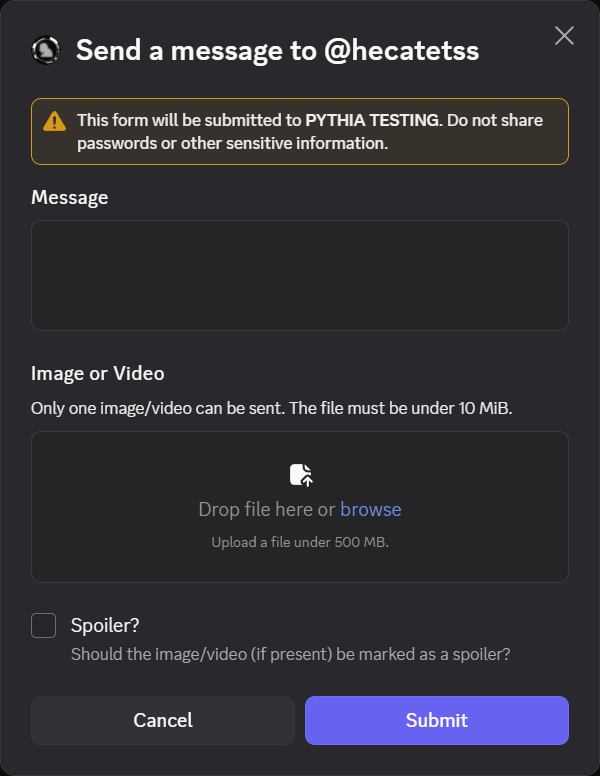
To send a message, you can use /message send followed by the user you want to send a message to. A pop-up will then appear, where you can type your message and/or add a image/video to the message. Here's an example of what that looks like:
Don't Want to Use the Pop-Up?
If you don't want to use the pop-up, you can supply the message option directly into /message send. This allows you to send a message in one command, but does not allow you to send messages with multiple lines or add images/videos to the message.
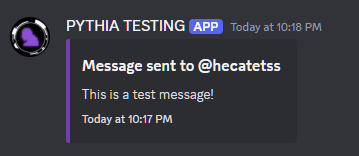
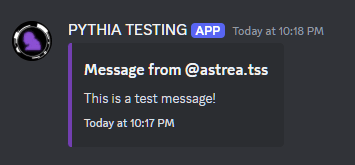
Once you send the message, it will be sent to the user's channel (or a thread in their channel), and a copy of the message will be sent to your channel (or a thread in your channel). Here's an example of what that looks like:
Multiple Files In A Message
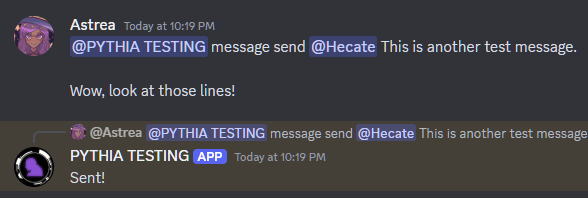
You may have noticed that the pop-up only allows you to add one file to a message. However, you can actually add multiple files to a message by using the text/prefixed variant of the command, @BOTMENTION message send @USER <message>, and attaching multiple files to that message. Here's an example of what that looks like:
This is also convienent for sending messages quickly, though try not to spam the bot with too many messages at once!
Usage Notes
In this example, the testing bot was mentioned. Of course, you should mention the main "PYTHIA" bot instead.
If you think message takes up too many characters, you can replace it with msg. If you're feeling a bit old-school, you can also replace send with whisper.
If you attached files to the message, do not delete the message you used to send the message! The bot uses the attachments in that message directly; if you delete it, the message sent to the user will lose those files.
Anonymous Messages
If the staff members have enabled anonymous messaging, you can send messages without the receiver knowing who sent it. To send an anonymous message, you can use /message anon followed by the user you want to send a message to and the message you want to send.
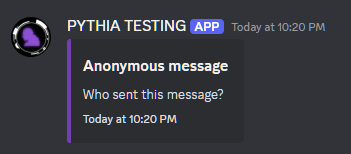
The receiving user will then receive a message that will not show who sent it. Here's an example of what that looks like:
Note
Anonymous messaging is not enabled by default. If you want to send an anonymous message, you will need to check with the staff members in your server to see if they have enabled it.
Anonymous messages are not truly anonymous - a copy of the message is still sent to your channel, so staff members can still see who sent the message.
You can use the text/prefixed variant of the command (e.g., @BOTMENTION message anon @USER <message>) for anonymous messages as well, just like with regular messages.